Oddframe
Liquid Blob Button
FreeInteractive Liquid Blob CTA Button
Searching…
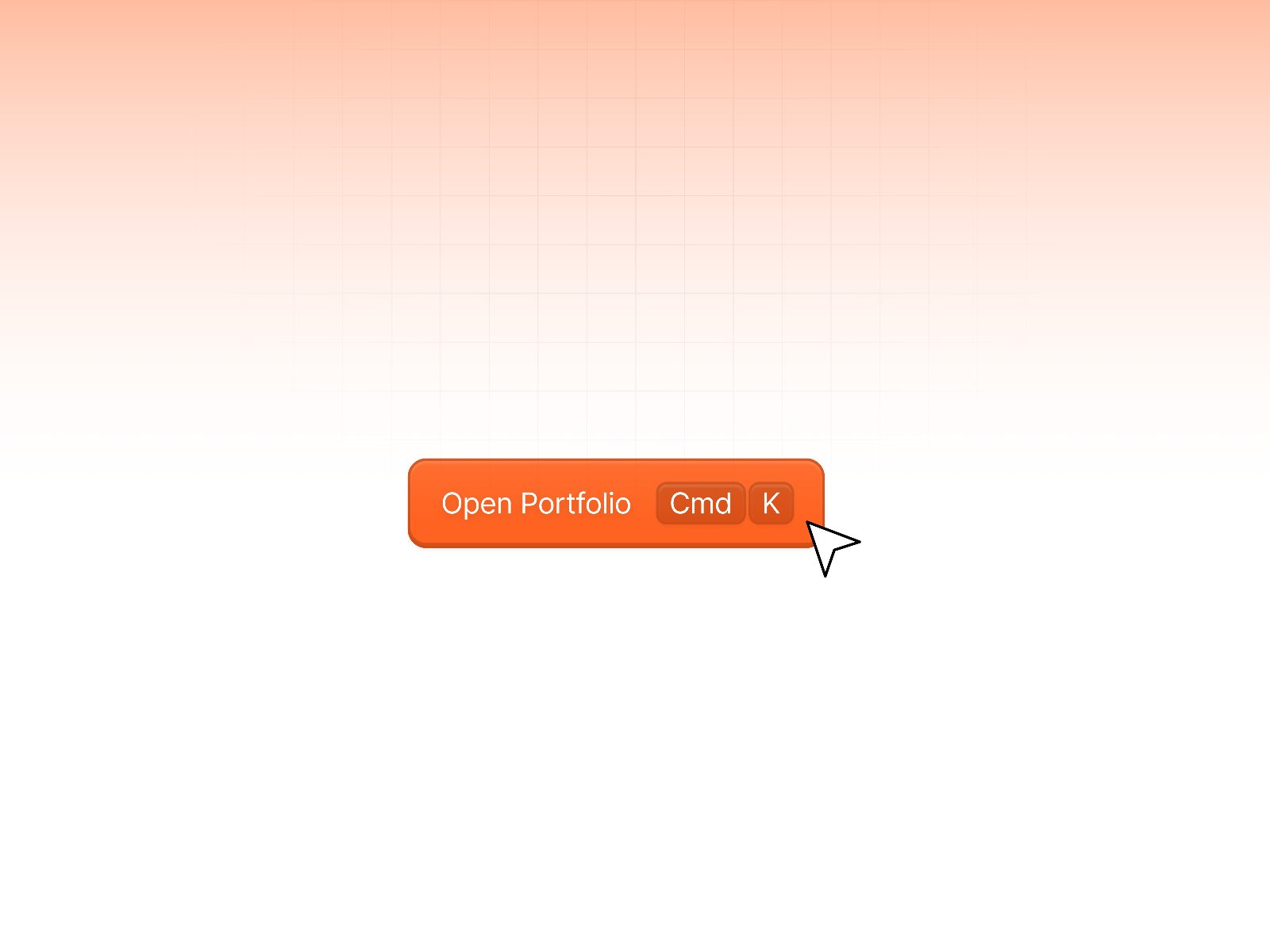
The Keyboard Shortcut component makes it easy to add hotkeys to your prototypes and projects in Framer.
The Keyboard Shortcut component makes it easy to add hotkeys to your prototypes and projects in Framer. Instead of relying only on clicks or taps, you can map any key to trigger an action.
How to Use
Copy & Paste – Drag or paste the Keyboard Shortcut component into your canvas.
Attach to a Target – Place it inside the button (or any element) you want to control.
Positioning – Change the position to absolute and set z-index to -1 so it doesn’t block interaction.
Customize Properties – Choose the key you want (e.g., B) and assign the action you’d like to trigger (e.g., “Book a call”).
Test – When you preview the prototype, pressing the assigned key will trigger the action.
Features
Works with any element inside Framer.
Customizable keys for different actions.
Non-intrusive (hidden layer with negative z-index).
Simple, flexible, and reusable across multiple projects.
Best Practices
Use unique keys for different actions to avoid conflicts.
Keep shortcuts intuitive (e.g., S for Save, B for Book).
Provide visual hints or tooltips in your design so users know shortcuts exist.