Tutorials
Eastward User Manual: Luxury Travel Template
Customize Eastward with confidence: pages, content, destinations, itineraries, and intake
Written by
 Elliot Li
Introduction
The illusion of luxury
Most luxury travel websites try to do their job through a mechanical checklist: a serif font, a brownish-gold accent color, and an aggressive call to action. They expect baseline quality to command trust from HNW clients — the mismatch is why they fail.
Bridging the gap
Eastward was built to close that gap. Instead of explaining logistics, it builds a world view. Instead of trying to rush a high-consideration offer, it builds a belief ladder that makes the inquiry feel like the natural next step.
The un-template
Traditional templates demand constant manual assembly and layout adjustments. Eastward builds the page for you — complete with bespoke animations and ready to publish. There’s nothing sitting between you and your content.
Pages overview
The site structure is laid out in the Pages section on Framer’s left side panel.
Pages are demarcated into 2 types:
Regular pages, as denoted by  , where most static content live, and
CMS pages, as denoted by  , which host content coming off of CMS.
You’ll notice a number next to each CMS page. It represents the number of CMS entries mapped to that particular page, one entry per page instance.
While CMS content is mostly consumed by CMS pages, regular pages can also contain CMS data. For example, the /destinations page has a section that aggregates and filters the entire Destinations CMS collection.
There are also a number of “book-keeping” pages: /about /privacy etc.. I’ve linked up their content with the Info CMS collection, just to make editing a little easier for you.
Static and dynamic content
Just for convenience’ sake, let’s call content that “lives” directly on the page “static content” and content from CMS “dynamic.”
When you select a piece of static content on-page, Framer’s right side panel will update to reflect the properties of the selected element. You can change its various settings there.
Same is true for dynamic content, although trying to change some of the properties will lead you to the CMS editor, which lets you make the changes there.
There are also properties marked with “Transform,” which I recommend you stay away from, unless you know what you are doing.
Updating the homepage
Locate the Loading layer and verify it through the Layers tab:
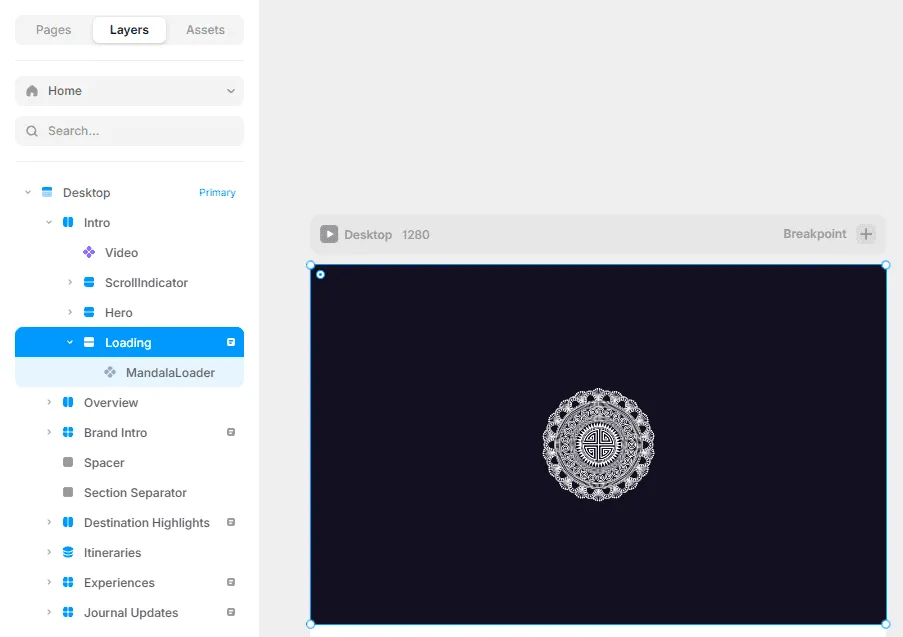
The loading layer waits for the first screen video to become playable to begin the opening animation sequence. Hide it by clicking on the visibility toggle shown:
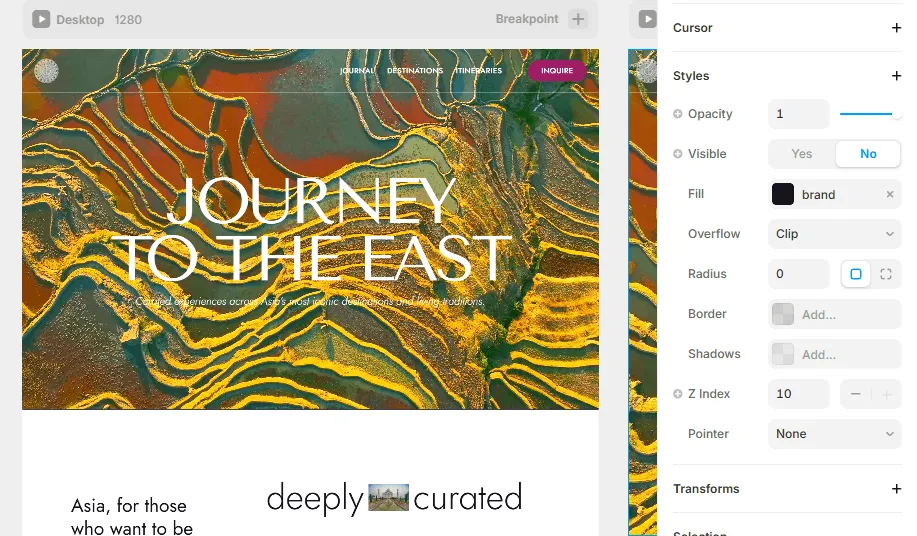
Make your changes. When you are done, toggle visibility back — or you can leave it disabled if you are after a faster page load. It’s up to you.
Switching the video: in the Layers tab, locate Intro -> Video, and input the URL of your own video.
You’ll see 3 canvases, each representing a device type. Make your changes on Desktop — changes made there will propagate to the other devices.
Updating the rest of the homepage
The homepage hosts a mix of static and dynamic content. If you are unfamiliar with Framer’s CMS interface, delay changing dynamic content until you’ve read Managing destinations below.
You will learn about how to customize the “Icons of Asia” reel items in Managing destinations.
Updating the footer
You can find all business-related info in the single Info CMS collection entry, which drives footer content. So make your changes there.
Managing destinations
Showcase your destination expertise by filling out CMS entries and everything gets automatically turned into stunning webpages.
Eastward comes with a dozen or so preloaded destinations so you can experiment with them and see how they work. Once you get the hang of it, you can easily start adding your own.
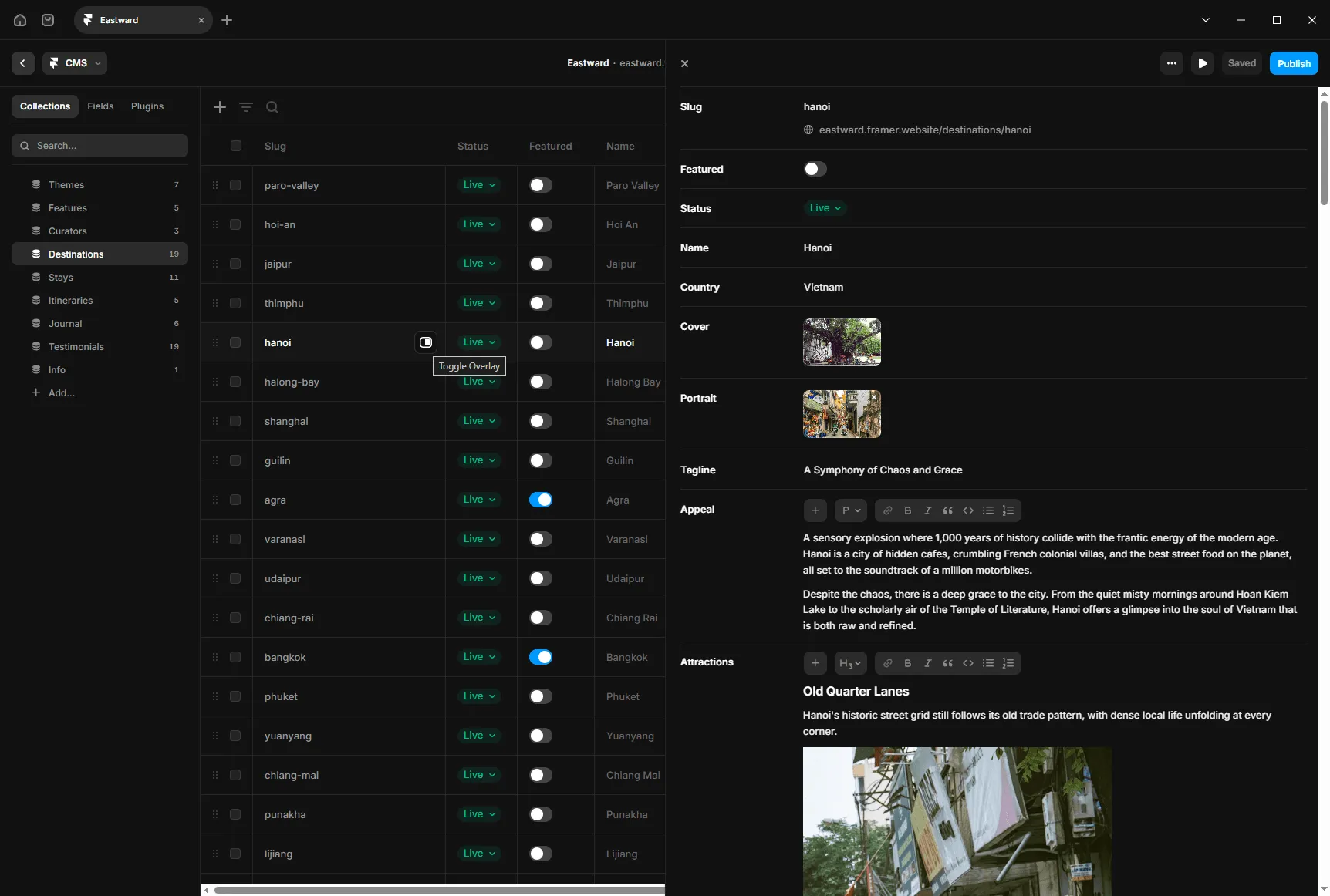
Clicking the CMS button on the top bar will take you to the CMS interface. Go to the Destinations collection and open an entry overlay, for example, hanoi. Here you will find the underlying data that powers the live hanoi page (eastward.framer.website/destinations/hanoi).
If you look at the webpage and the CMS side-by-side, you’ll quickly see how it all connects. You will find that most content on the page is dynamic content, mixed with a few static elements that you can edit on-page if needed.
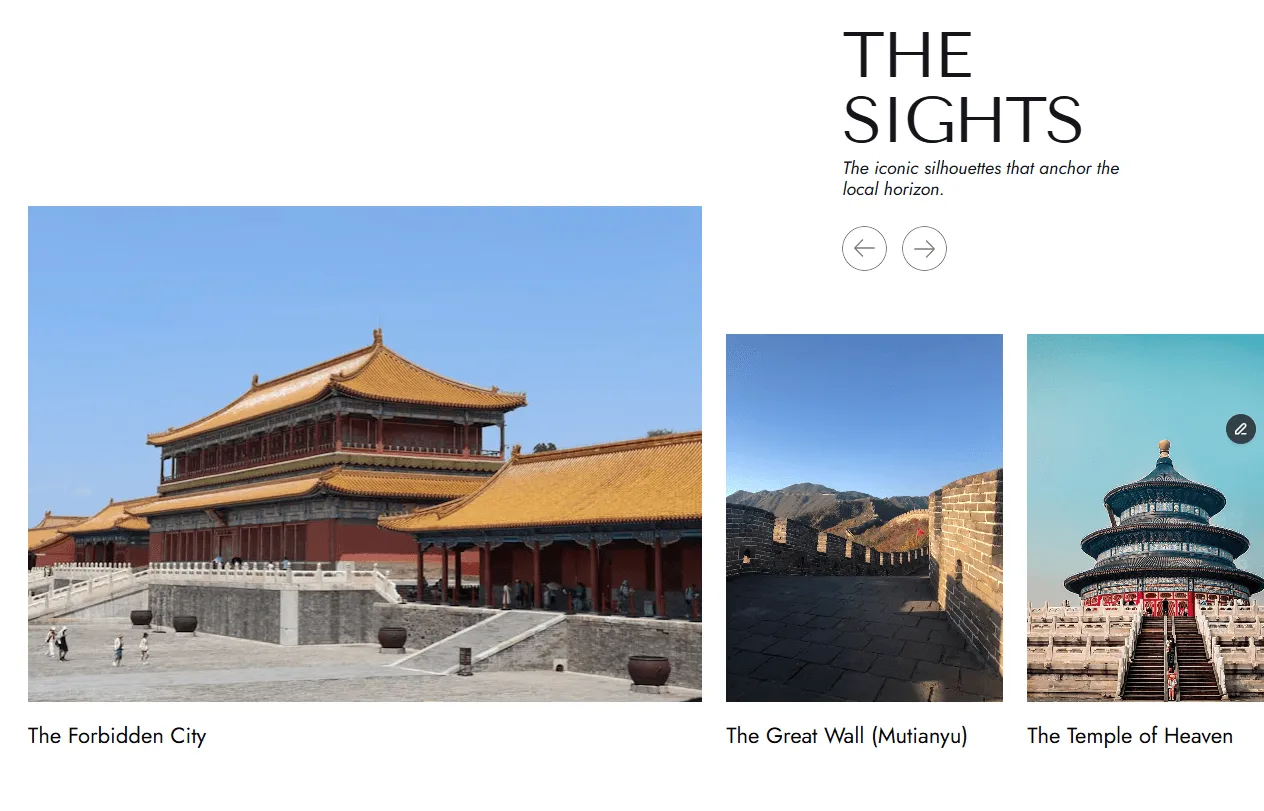
The Attractions reel turns plain content into a high-end animated showcase. Add a title, any number of paragraphs, and an image — that’s one reel item. Add as many as you need; the layout and animation handle themselves. Just follow the simple format: a title (h3), any number of paragraphs, and a picture to build a reel item. You can put as many items into the field as you want.
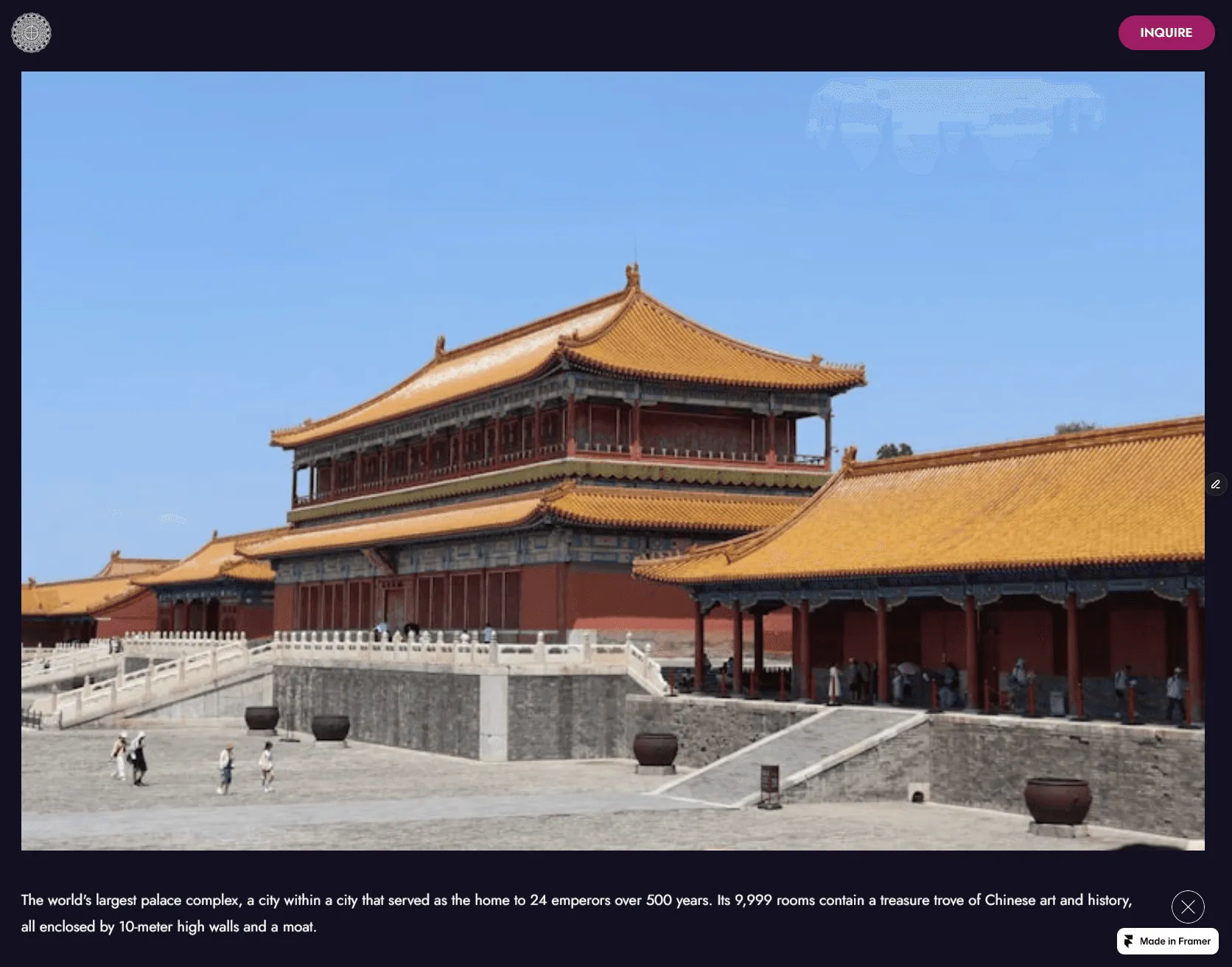
Scanning through the collection, you’ll see destinations marked as “featured”, those will appear in the /destinations page, and you can mark attractions (by enclosing their title in [] as shown) in any featured destination to make them appear in the homepage.
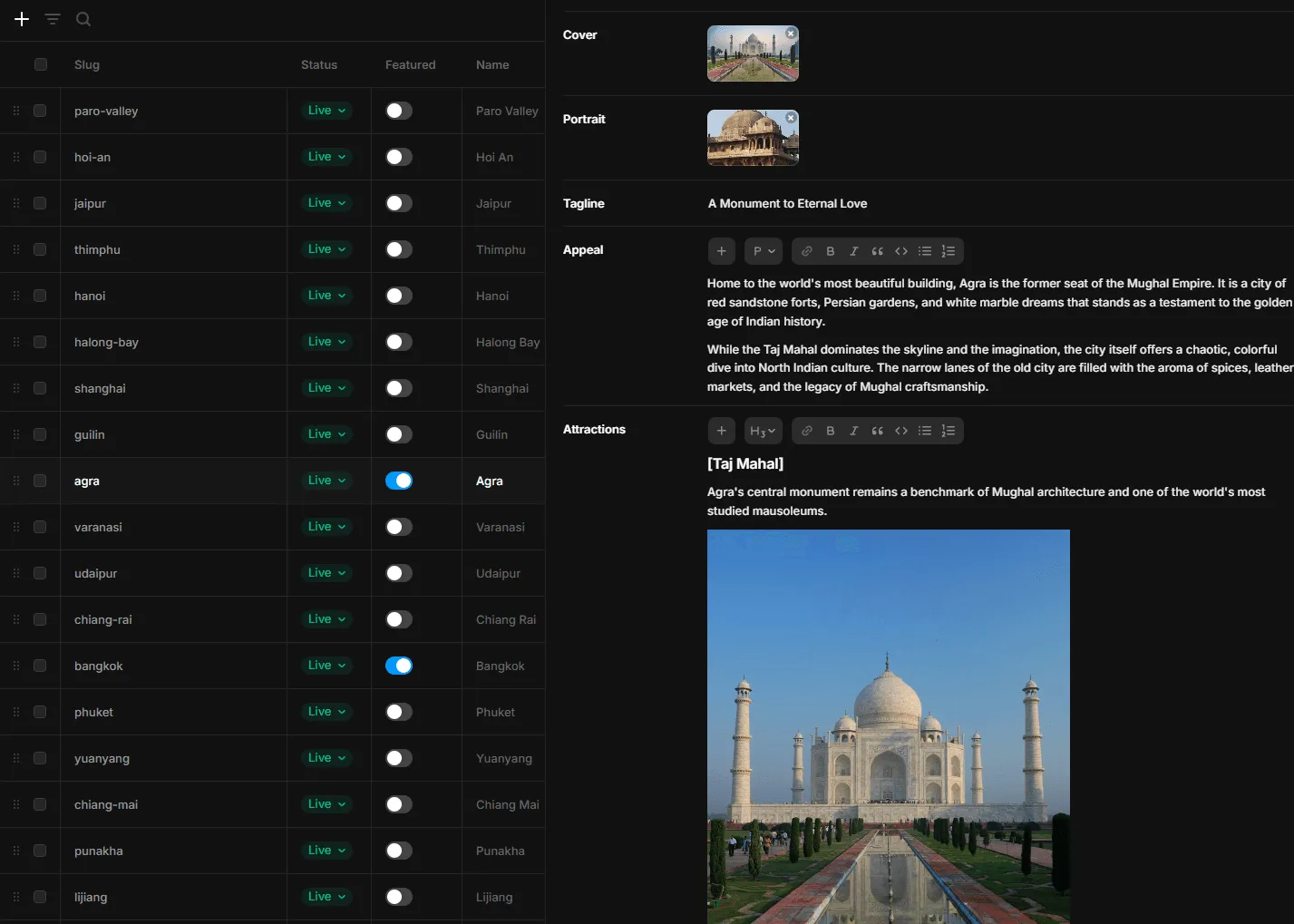
Follow the same pattern to customize the Activities field.
Managing itineraries
Follow the same pattern established in the previous section to customize your itineraries. The Schedule field generates scroll-linked itinerary animations following the same logic as before.
Managing intake
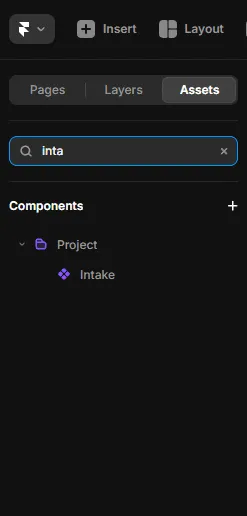
Eastward is set up to connect to your existing operations with ease. Locate the intake form:
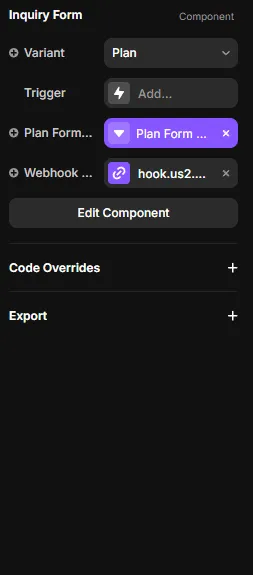
Find the Webhook URL field once you open the intake form. It’s the remote destination that the intake form will send its data to. It’ll usually point to a Zappier or Make workflow, which then links up to your backend or a simple Google sheet.
For Google sheet users, you can use ready-made Zappier and Make templates:
Get the Zappier template at r.elliotli.dev/ewzapp.
Get the Make template at r.elliotli.dev/ewmake.
Once you copied the template, just copy the webhook URL over.
That concludes the guide. If you have any questions, feel free to reach out — contact@elliotli.dev.
License
If you purchased this template from the standard marketplace (or won through a giveaway), you are granted a one-time use license, which allows you to use the template one time for commercial or personal purposes. To deploy it multiple times or across multiple sites, you need an agency license.
Custom made artwork, including the Miao mandala, icons in the Categories vector set, and custom code are copyrighted intellectual property of Elliot Li. You are granted rights to use them solely as an integrated, non-extractable part of the original Framer template.
The Asset may NOT be:
- copied, extracted, isolated, or reused independently;
- used outside the original Framer template or in other projects;
- redistributed, sold, sublicensed, shared, or made available to third parties;
- used as reference material to recreate a substantially similar work.
No ownership or intellectual property rights are transferred.
All rights not expressly granted are reserved.
Support
Questions, issues, or feedback — reach out at contact@elliotli.dev. Response within 48 hours.
FAQ
- Can I leave the loading layer disabled?Yes. Toggle its visibility back on when you are done editing, or leave it disabled if you are after a faster page load. It is up to you.
- What are the properties marked Transform?Advanced layout properties. Stay away from them unless you know what you are doing.
- Can I reuse Eastward on multiple sites?The standard license covers one-time use for commercial or personal purposes. To deploy it multiple times or across multiple sites, you need an agency license.
Keep going
Next: How To Customize a Framer Template